Home / AI & MCP
Your AI reads your clients' comments and manages them
Pautio's MCP server connects an MCP-compatible AI assistant, such as Claude, to the comments of a review round. The AI can list the comments, read each thread with the selected element, change its status and reply to the client. You pay no credits and need no third-party account: the server lives in your WordPress.
A typical workflow
- The client closes their round.
- Your AI asks for the summary, groups duplicates and sorts by priority.
- It answers the comments that are questions.
- It leaves you the list of changes, ordered by page.
- You, or your AI with its own tools, apply the changes.
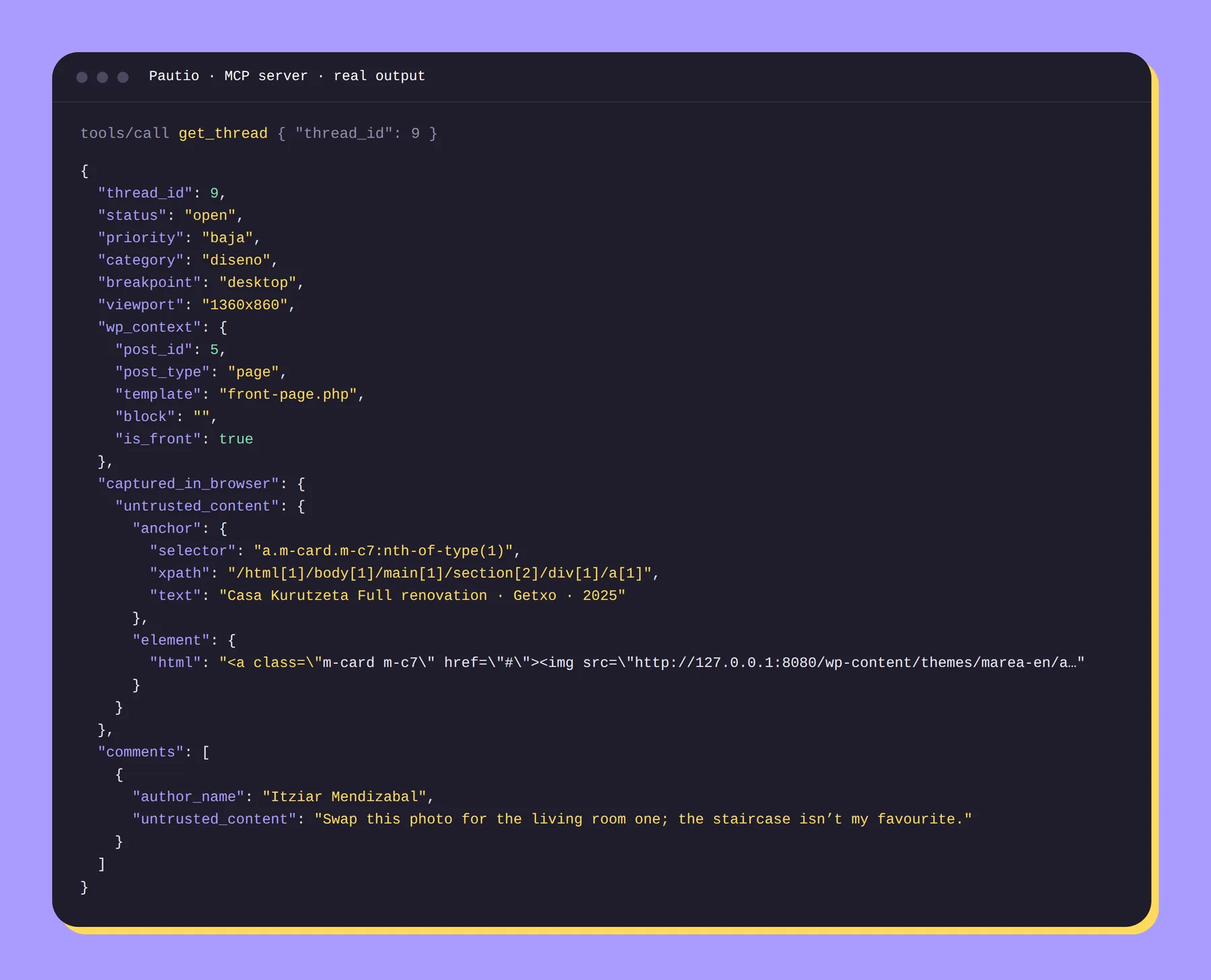
What can the AI do?
| Tool | What it does |
|---|---|
list_rounds | Rounds with the number of comments by status |
list_threads | Comments filtered by round, page and status |
get_thread | Messages, anchor, element HTML and styles, browser, viewport and console errors |
get_page_context | Related content, template, selected block and source text (trimmed) |
get_round_summary | Counts by status, category, priority, page and breakpoint |
update_thread | Status, priority, category and owner |
reply_thread | A reply visible to the client, marked as AI (plain text, max. 2,000 characters) |
merge_threads | Merges one thread into another without deleting anything |
What can't it do?
Pautio doesn't edit pages, plugins or settings. If you want the AI to apply the changes, it needs its own WordPress tools. Pautio gives it the list of changes, with enough context to locate each one.
Is it safe to give an AI access?
- The AI uses its own credential, created from the panel, which you can revoke whenever you like. It's revoked automatically when the plugin is deactivated.
- Access is limited to Pautio's functions.
- Everything a client writes arrives labeled as untrusted content, so the AI doesn't treat it as instructions.
- Every AI change is recorded in the audit log with the actor “agent”.
- AI replies are shown to the client as AI replies.
How to connect it
- In WordPress, go to Pautio → AI connection and create the agent's credential.
- Copy the command for Claude Code or the configuration for Claude Desktop. They are generated with your address and your credential already filled in.
- Ask your AI to list the rounds.
The server responds at /wp-json/pautio/v1/mcp (HTTP with JSON responses). It needs the site to use HTTPS and WordPress application passwords to be available.
# Claude Code
claude mcp add --transport http pautio \
  https://your-site.com/wp-json/pautio/v1/mcp \
  --header "Authorization: Basic …"